controls
mechanic · touch, keyboard, gamepad and TV
Asteroid Pong plays with a touch screen (portrait or landscape), keyboard and mouse, a gamepad or a TV remote, and every menu works with any of them. You move your paddle side to side, and a single button releases the magnet and fires the finisher.
Touch (portrait and landscape)
On a touch screen you drag your finger and the paddle follows it, with the phone in portrait or landscape.
- Drag: the paddle follows your finger, however the table spins.
- Tap: releases balls from the magnet, stops the finisher needle and closes tutorials.
- Hold 0.9 s: skips a boss intro (a stray tap won't cut it).
- Pause: button at the top right.
- Portrait: the camera adjusts so the whole table fits. The "portrait camera" option changes the framing: high angle, narrow lens or low track.
- Orientation: automatic, portrait or landscape, in settings.
- Turned table: the "touch when turned" option picks between "screen axis" and "drag". In drag mode, putting your finger down doesn't move the paddle: only how far you slide counts.
- 2 players: each player uses their half of the screen.
Keyboard and mouse
On keyboard you move the paddle with A/D or the arrow keys, and with a mouse the paddle goes where you point.
| key | action |
|---|---|
| A/D or ←/→ | move the paddle |
| ↑/↓ or W/S | move when the table spins |
| Shift | hold = turbo (the paddle goes faster) |
| double-tap a direction | dash: a short burst at full speed |
| Space / Enter | release magnet · fire finisher · close tutorial; hold = skip intro |
| P / Esc | pause |
| M | sound |
| F | fullscreen |
| mouse | the paddle goes to the cursor position |
| 2 players | P1 at the bottom with A/D or ←/→, P2 at the top with J/L |
Gamepad
On a gamepad you move with the d-pad or left stick and use ✕ (A) to release the magnet and fire the finisher.
| button | action |
|---|---|
| d-pad | move at top speed; double tap = dash |
| left stick | move: the further you tilt it, the faster |
| ✕ or □ (A / X) | release magnet · fire finisher · accept; hold = skip intro |
| △ (Y) | also fires the finisher |
| ○ (B) | back in menus |
| Options / Start | pause |
| L1 · R1 · L2 · R2 | hold = turbo; in menus, L1/R1 switch tabs |
In 2 players each player uses their own gamepad. The full map is always in settings › controls.
TV remote
With a TV remote you use the d-pad to move and navigate, and OK for everything else.
| button | action |
|---|---|
| d-pad | move and navigate menus; double tap = dash |
| OK | release magnet · fire finisher · accept; hold = skip intro |
| Back | pause · back |
| menu key | pause / resume |
- Some remotes send repeated pulses when you hold the d-pad: the game detects this and turns off the dash so it doesn't trigger by accident.
- On TV, touch and keyboard hints are hidden.
- If your TV crops the picture, raise the "safe margin" (Android TV recommends 5%). A short trail reads better on TV.
Turned or tilted table
When the table turns or tilts, your controls follow the screen: push toward where you want to see the paddle go.
| situation | who | turn | lasts |
|---|---|---|---|
| vortex ("the table spins") | bosses and giants | 90° left or right, 180°, or a tilt of about 60° | 6 s |
| vortex | titans | tilt of about 49° (about 40° in portrait) | 6 s |
| tilted table | titans, from stage 2 | about 17°; the ball rolls toward the low side | 6 s |
| vortex in retro view | bosses and titans | only ±90° | 6 s |
- Arrows beside the paddle show which way it moves.
- On keyboard, when the table spins you can also use ↑/↓ or W/S.
- Rotation assist (on by default): shows those arrows and slows the game to 60% while the camera is turning.
Accessibility and comfort
The game has several comfort and accessibility options in settings.
- rotation assist
- Slows the game while the table turns and shows axis arrows.
- interface motion
- The 3D tilt and sway of menus and HUD; it can be reduced.
- camera shake
- How much the camera shakes on hits and bombs.
- photosensitive mode
- Blocks flashes, glitch, negative flashes and fast blinking.
- color-blind mode
- Protanopia, deuteranopia or tritanopia: changes the colors that carry information (rival, danger, bonus) instead of filtering the whole image.
- high-contrast ball and paddles
- White ball and outlined paddles, easy to follow through strong effects.
- HUD
- Adjustable size, opacity and safe margin.
- field of view
- Wider shows more of the table; narrower enlarges the action.
- beat pulse
- The camera, glow and menus pulsing with the kick drum.
- magnet guide
- The dotted line that shows the magnet bounce.
- languages
- Spanish, English and Portuguese.
Frequently asked questions
Can I play with a gamepad?
Yes. The d-pad or left stick moves the paddle, ✕ or A releases the magnet and fires the finisher, the triggers give turbo and Start pauses. Every menu works with a gamepad.
How do I stop the finisher needle with a TV remote?
With OK. The same button releases the magnet and accepts in menus; Back pauses the game.
What do I do when the table spins?
Push toward where you want the paddle to go on screen: controls follow the screen and arrows show the axis. Rotation assist also slows the game while it turns.
How do I skip a boss intro?
Hold for 0.9 seconds: finger on the screen, space, ✕/A or OK. A single tap won't skip it.
Related
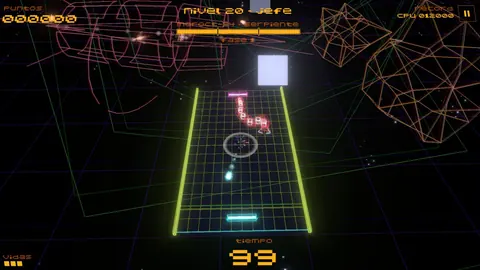 finishermechanic · bosses, giants and titans
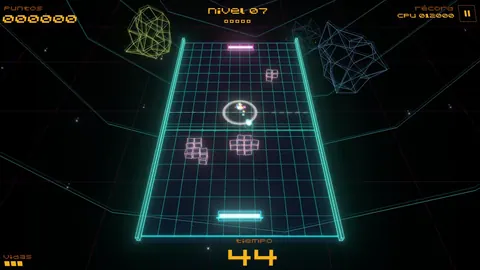 power-upsmechanic · 9 power-ups
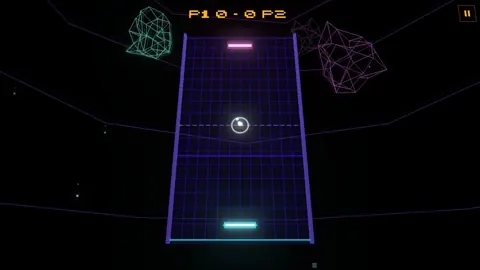 2 playersmode · local
Describes version 0.8.26 · 2026-10-09